Tutorial: Setting Up Progress Tracking for Your Athletes
You have athletes. They have training plans. But are they actually improving?
Progress tracking is the difference between coaching and guessing. When you can see exactly how each athlete is performing—ground contacts, workout completion, load trends—you make better decisions. You catch problems early. You celebrate wins with data.
This tutorial walks you through setting up progress tracking in PlyoPlanner from scratch. By the end, you’ll have athletes on your roster and know exactly which metrics to monitor.
Step 1: Add Athletes to Your Team
Before you can track progress, you need athletes in your system. PlyoPlanner gives you two paths: individual invites and bulk invites.
Individual Invites
Use this for small rosters or adding athletes one at a time.
How to do it:
- Open PlyoPlanner and navigate to your team
- Tap Members in the team menu
- Tap Invite Athlete
- Enter the athlete’s email address
- Tap Send Invite
The athlete receives an email invitation. When they accept, they appear on your roster automatically.
Bulk Invites
Got a roster of 20+ athletes? Don’t add them one by one.
How to do it:
- Go to your team’s Members section
- Tap Invite Athletes → Bulk Invite
- Paste your email list (one per line or comma-separated)
- Tap Send All Invitations
PlyoPlanner sends every invitation at once. Athletes accept on their own time, and each one lands on the correct team.
Pro tip: Pull email lists from your existing registration system or team spreadsheet. Most coaches already have this data somewhere.
What Athletes See
Athletes receive a clean invitation email: “You’ve been invited to join [Team Name] on PlyoPlanner.”
They tap the link, create an account (or sign in), and they’re on your roster. No codes to enter, no complicated setup.
Typical acceptance timeline:
- 50% accept within 24 hours
- 80% within 3 days
- Stragglers trickle in over a week
Follow up with anyone who hasn’t accepted after 5 days. Usually it’s a spam folder issue or a wrong email address.
Step 2: Understand What Metrics PlyoPlanner Tracks
Once athletes are on your roster and training, PlyoPlanner automatically captures the metrics that matter for plyometric programming.
Ground Contacts
This is the primary metric. Every time an athlete’s foot hits the ground during a plyometric exercise, that’s a ground contact.
Why it matters: Ground contacts are the currency of plyometric training load. Too few and you won’t adapt. Too many and you risk injury.
PlyoPlanner tracks:
- Per-session contacts: How many contacts in each workout
- Weekly contacts: Rolling total across all sessions
- Contact trends: Is the athlete’s load increasing, decreasing, or holding steady?
What to look for:
- Beginners: 60-100 contacts per session
- Intermediate: 100-150 contacts per session
- Advanced: 150-200+ contacts per session
If an athlete suddenly spikes from 80 to 200 contacts in a week, that’s a red flag. Progressive overload means gradual increases, not jumps.
Workout Completion
Simple but essential: did the athlete actually do the workout?
PlyoPlanner shows you:
- Completion rate: Percentage of assigned workouts completed
- Partial completions: Workouts started but not finished
- Missed workouts: Assigned but never logged
An athlete with 50% completion isn’t lazy—they might be overloaded, injured, or confused about the plan. The data gives you a reason to check in.
Personal Records
PlyoPlanner flags new personal records automatically when athletes log performance data.
Common PRs tracked:
- Vertical jump height
- Broad jump distance
- Sprint times
- Reaction drills
PRs show up in the athlete’s profile and in your team dashboard. Celebrating wins keeps athletes motivated.
Load Intensity Breakdown
Not all ground contacts are equal. A depth jump from 30 inches stresses the body differently than a line hop.
PlyoPlanner categorizes exercises by intensity:
- Low: Ankle hops, jump rope, line hops
- Moderate: Box jumps, standing long jumps, skipping
- High: Depth jumps, single-leg bounds, drop jumps
You can see each athlete’s intensity distribution over time. An athlete doing 200 low-intensity contacts has a very different training stimulus than one doing 100 high-intensity contacts.
Step 3: Access the Progress Dashboard
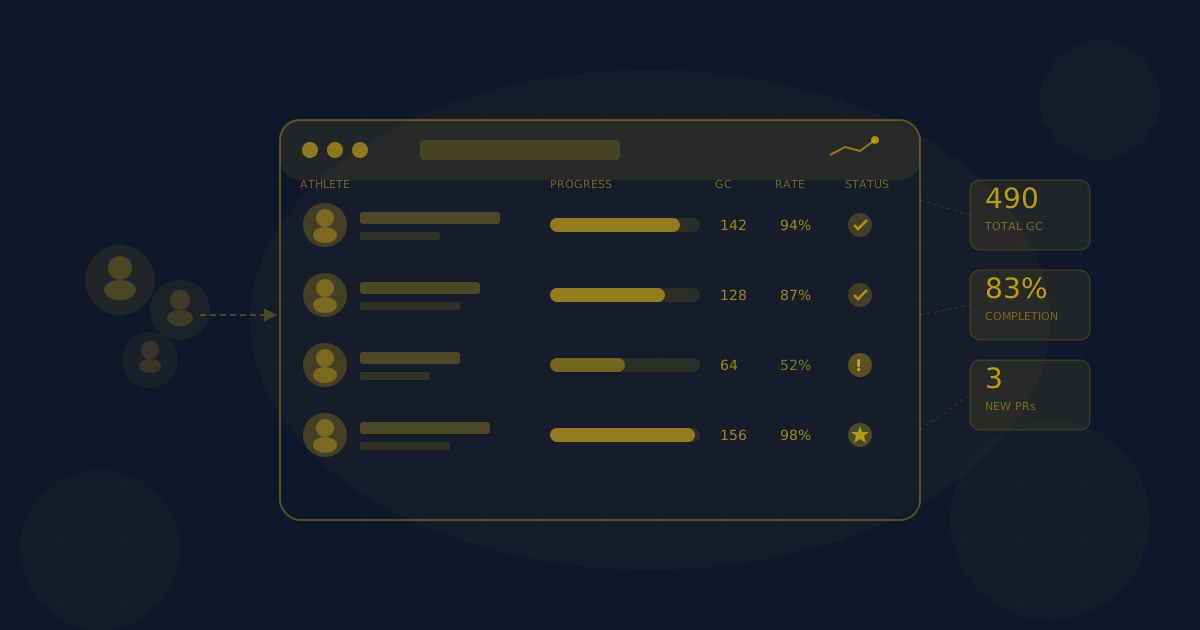
All tracking data lives in one place: the progress dashboard.
Team Dashboard View
How to access it:
- Select your team from the main menu
- Tap Progress or the dashboard icon
You’ll see:
- Team overview: Average completion rate, total team contacts this week
- Athlete list: Each athlete with their key metrics at a glance
- Alerts: Athletes who missed workouts, unusual load spikes, new PRs
The team view is your daily check-in. Scan it in 30 seconds to spot anything that needs attention.
Individual Athlete View
Tap any athlete’s name to drill down.
What you’ll see:
- Contact history: Chart showing ground contacts over time
- Workout log: Every completed session with details
- PRs and milestones: Achievements and improvements
- Completion rate: Their adherence percentage
- Notes: Any notes you’ve added about the athlete
This is where you go when you need the full picture on a specific athlete—before a check-in conversation, when adjusting their plan, or when parents ask how training is going.
Step 4: Configure Alerts and Notifications
Don’t wait until problems become obvious. Set up alerts to catch issues early.
Available Alerts
Missed workout alert: Triggers when an athlete misses a scheduled session. Configurable: trigger after 1 miss, 2 in a row, or 3 in a week.
Load spike alert: Triggers when an athlete’s weekly contacts jump more than 20% above their recent average. Helps catch overtraining risk.
Inactivity alert: Triggers when an athlete hasn’t logged any activity in X days. Useful for catching athletes who quietly disengage.
PR notification: Get notified when any athlete on your team hits a new personal record.
How to Configure Alerts
- Go to Settings → Notifications
- Select which alerts you want enabled
- Choose delivery method: push notification, email, or both
- Set thresholds where applicable
Most coaches enable all alerts with push notifications. The volume is low enough to be useful, not annoying.
Step 5: Best Practices for Ongoing Tracking
Setting up tracking is one thing. Using it well is another.
Check the Dashboard Daily
Make it part of your routine. Coffee, email, PlyoPlanner dashboard. A 2-minute scan each morning tells you:
- Who trained yesterday
- Who didn’t
- Any red flags to address
Review Individual Athletes Weekly
Pick a time each week to look deeper. For each athlete:
- Is their load progressing appropriately?
- Are they completing workouts consistently?
- Any PRs or notable improvements?
Document anything important in the athlete’s notes. Future-you will thank present-you.
Use the Data in Conversations
Progress tracking isn’t just for you—it’s a communication tool.
With athletes: “I noticed your ground contacts dropped 30% this week. What’s going on?” Data makes feedback specific, not vague.
With parents: “Here’s Sarah’s progress over the past month. She’s hit two PRs and her completion rate is 94%.” Data builds trust.
With other coaches: “The U16 team is averaging 140 contacts per session. The U14s are at 95. Might be time to increase their volume.” Data enables alignment.
Adjust Based on What You See
Tracking without action is just record-keeping. The point is to make better decisions.
Low completion rates? The plan might be too demanding or not engaging enough. Talk to the athlete.
Stagnant metrics? Time to increase volume, intensity, or complexity. Progressive overload requires progression.
Unexpected PRs? Whatever you’re doing is working. Document it and keep going.
Common Questions
Do athletes see their own progress data? Yes. Athletes have their own dashboard showing their contacts, completion rate, and PRs. Transparency keeps them engaged.
Can I export the data? Yes. Go to Settings → Export and choose your format (CSV or PDF). Useful for end-of-season reports or sharing with athletic directors.
What if an athlete trains outside PlyoPlanner? They can manually log external sessions. Not as seamless as in-app tracking, but it keeps the record complete.
How far back does the data go? Forever. Or at least as long as the athlete is on your roster. Historical data doesn’t expire.
You’re Set Up
Here’s what you now have:
- ✓ Athletes invited and rostered
- ✓ Understanding of which metrics matter
- ✓ Access to the progress dashboard
- ✓ Alerts configured to catch issues early
- ✓ A framework for ongoing monitoring
Progress tracking turns plyometric coaching from guesswork into science. You see what’s happening. You catch problems early. You prove that training is working.
The athletes who get tracked get better. Now you have the tools to make that happen.
Questions? Reach us at support@plyoplanner.com or @plyoplanner on X.
Ready to build explosive power?
Start planning your plyometric training today. Free for athletes.
Get Started FreePlyoPlanner Team
Helping coaches and athletes train smarter